The app will install and show up on your Home Screen. From now on, simply tap on the icon to launch the app.
This app is published by Kerryn Academy primarily as a service for enrolled students to collect and share interesting articles, news, stories and topics related to our courses in coding, web and game development, cybersecurity and more.
KANEWS, the technology aggregator feed of Kerryn Academy, curates this RSS feed of relevant, interesting and buzzworthy collection of news articles, posts and resources as a service to our students enrolled in technology-related courses with our academy. As they start their journey in the computer programming and web development fields, finding and staying up-to-date with current news in this industry can prove to be a challenge. This feed was created to solve that problem and serve as a starting point to discover industry-leading and recognized sources and help build their own collection of go-to references to stay on top.
To really take advantage of this aggregator, we strongly encourage and invite you to install this app on your mobile and desktop device. Doing so frees your browser's resources while keeping this app available at all times, open in the background, usable even when offline, accessible with a quick click or tap and bringing you timely notifications of latest posts and more.
Install the KAnews PWA (progressive web app) on your cellphone, tablet, laptop or desktop computer.
Don't forget to accept our notification request to receive timely up-to-date reminders on the latest posts or relevant news.
To get started, choose the link below that corresponds with the device you are using now to read the instructions on how to download and install our app.
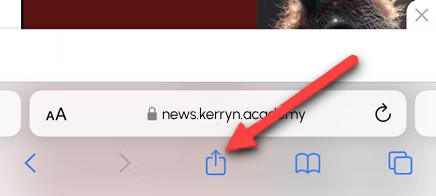
Open Safari and go to the web app you'd like to place on the home screen. Tap the share button (up arrow within a square) in the toolbar.
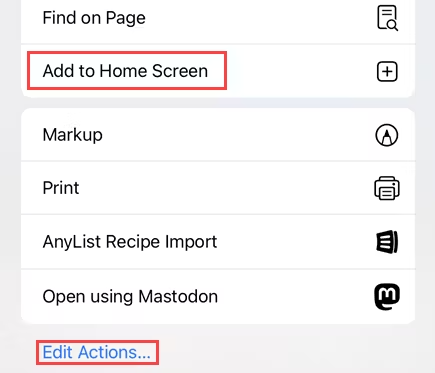
Select "Add to Home Screen" from the share sheet. If you don't see this option, tap "Edit Actions" at the bottom of the share sheet and add it from there.
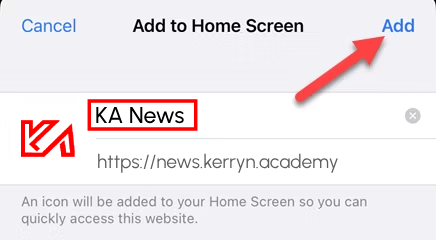
Next, change the name of the shortcut if you'd like, and tap "Add."
The app will be added to your home screen! When you launch the app, it will open in its own independent instance, not just a tab in Safari.
Android phone or tablet Installation
With Android, this quick app installation from your browser gives you the same advantages/benefits and ease-of-use as any other regular app installed from the Google Play Store. However, this method ONLY works from the Chrome browser. Using Mozilla Firefox to install this app is not supported at this time.
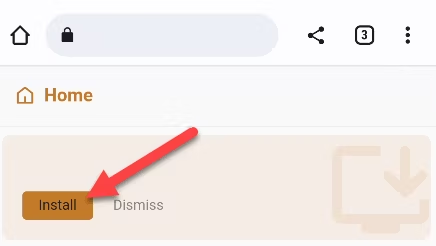
If you've been reading this on your Chrome browser, you may have already received notifications from the operating system asking you if you wanted to install this app. The next time this notication pops up - see below for a screenshot of how this notification looks like - simply accept it and you're done.
If you want to proceed and install this app right now, continue reading below...
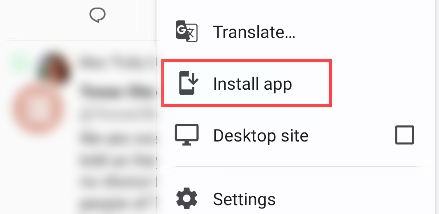
In Google Chrome, tap the three-dot menu icon and select "Install App."
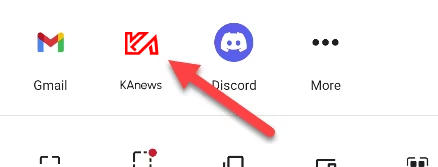
Apps installed from the Chrome browser are added to the app drawer AND on the home screen. They even appear in the Android share menu.
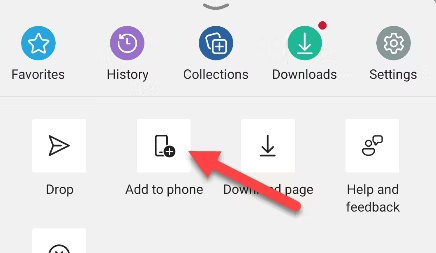
In Microsoft Edge, tap the three-dot menu icon and select "Add to Phone."
Apps installed by Edge will only appear on the home screen, but they still function exactly the same way as native apps downloaded from the Play store.
Desktop/Laptop Installation
To install this PWA on your desktop or laptop, here are the steps to follow:
Open this website's page using the Google Chrome browser or Mcrosoft's Edge browser. *At this time, installing this PWA is possible ONLY with these two browsers!
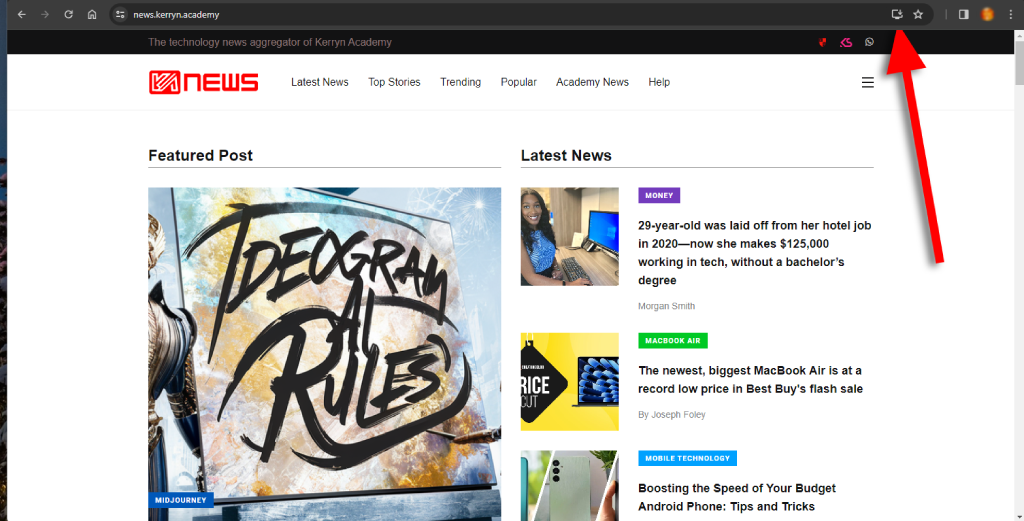
At the top right of the address bar, click the Install icon
Follow the onscreen instructions to install this PWA.